Test Elements View
Test Elements View shows the resource subdivisions and keywords for the currently opened TestBench context.
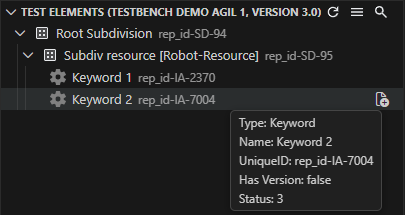
Resource identification and action visibility
Subdivisions with a configured resource marker suffix are treated as Robot Framework resources.
The default resource marker suffix is [Robot-Resource] and can be changed with the resourceMarker extension setting.

The Create Resource and Open Resource actions are shown only for subdivisions that match the configured resource marker suffix. Open in Explorer View is shown for subdivision folder nodes.
Create or open resource files
Use Create Resource to create a .resource file for a resource subdivision. Use Open Resource to open an existing .resource file for that subdivision. Use Open in Explorer View to reveal the related subdivision folder in the VS Code Explorer view.
Required metadata for synchronization
When the extension creates a resource file, it writes metadata comments at the top:
tb:uid:<Subdivision-UID>
tb:context:<Project-Name>/<Test Object Version Name>
These metadata lines are required for synchronization and must be kept valid. If metadata is missing or invalid, the extension offers Quick Fix actions to restore them.
Keyword navigation
Single-clicking a keyword opens the corresponding resource file and jumps to the keyword definition. Double-clicking performs the same action and also reveals the resource file in the VS Code Explorer view.
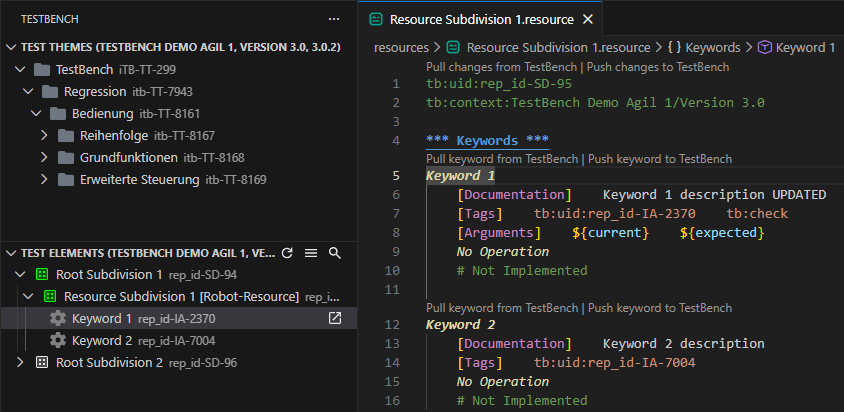
Keyword synchronization
CodeLens actions are inline clickable commands shown directly in the editor above a resource file or keyword definition. They support pulling keyword definitions from TestBench, pushing local keyword definitions to TestBench, and synchronizing either a single keyword or the entire resource file.
Toolbar buttons
The Test Elements View toolbar provides quick actions for navigation and tree updates:
- Refresh Test Elements reloads the current Test Elements context.
- Open Projects View switches back to Projects View.
- Search filters subdivisions and keywords in the tree.