Test Themes View
Test Themes View is used to generate Robot Framework suites from TestBench structures and to upload execution results back to TestBench.
Open context
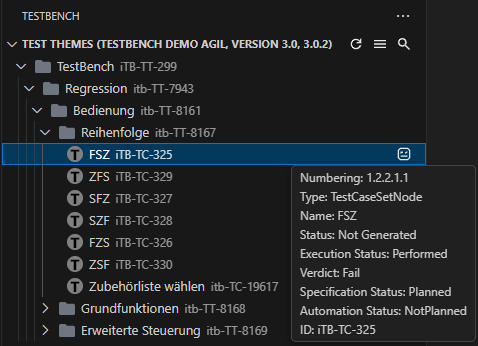
Open a TOV or cycle from Projects View to load the corresponding Test Themes View. For a complete workflow that includes execution results upload, open a cycle context.
Generate Robot Framework test suites
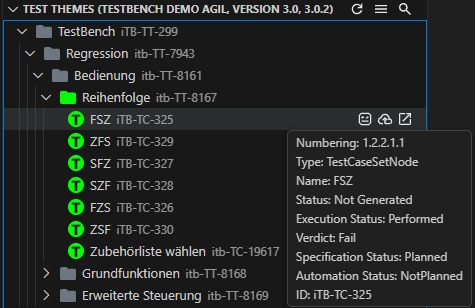
Every Test Theme and Test Case Set node has a Generate Robot Framework Test Suites action. Running it generates suites for the selected node and its subtree. Generated items are visually marked in the tree.
Test generation uses the bundled testbench2robotframework library. The output location is controlled by the outputDirectory extension setting. Optional pre-generation cleanup is controlled by cleanFilesBeforeTestGeneration, which deletes existing files in the output directory before new suites are generated.

Open generated files
Single-clicking a generated test case set opens its .robot file. Double-clicking opens the file and also reveals it in the VS Code Explorer view.
Execute and upload results
Run generated suites with RobotCode or any other Robot Framework runner before uploading results.
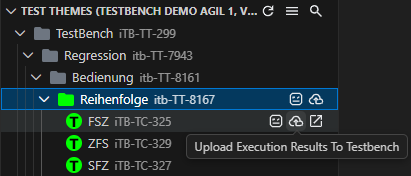
Use the tree item action Upload Execution Results To TestBench on the node you want to upload. You can upload a selected subtree or a single node.
The Upload Execution Results To TestBench action is visible for generated nodes and generated subtree contexts. Upload reads Robot Framework test execution results from output.xml, and the default result path is defined by outputXmlFilePath relative to the workspace. After a successful upload, affected tree items are updated to Performed and show verdict details in their tooltips. The upload action is available only when Test Themes View is opened from a cycle context.
Default behavior after upload
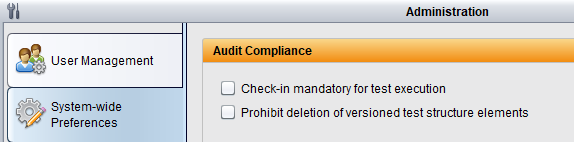
In TestBench, Check-in mandatory for test execution is enabled by default. You can find this option in Administration > System-wide Preferences.
When this option is enabled, uploading execution results causes TestBench to check in the executed items. The extension shows only executable items that are not locked by the system, so uploaded items are removed from Test Themes View after a successful upload.
If Check-in mandatory for test execution is disabled in TestBench, uploaded items remain visible in Test Themes View after upload.
Toolbar buttons
The Test Themes View toolbar provides quick actions for navigation and tree updates:
- Refresh Test Themes reloads the current Test Themes context.
- Open Projects View switches back to Projects View.
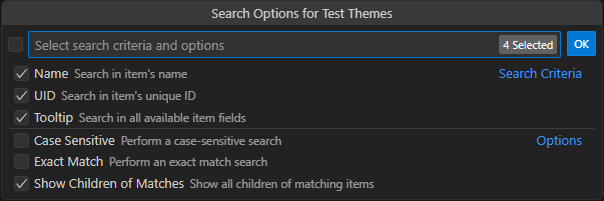
- Search filters test themes and test case sets in the tree.