Generating Tests
generate-tests turns a TestBench JSON report into a directory of runnable Robot
Framework test suites.
How it works
        ┌────────────────────────┐
        │  TestBench             │
        │  JSON-full-report      │
        │  (directory or .zip)   │  ┌──────────────────────────────┐
        └───────────┬────────────┘  │  Configuration               │
                    │               │  pyproject.toml / robot.toml │
                    ▼               │  / -c file / CLI options     │
         ┌─────────────────────┐    └─────────────┬────────────────┘
         │   generate-tests    │──────────────────┘
         └──────────┬──────────┘
                    ▼
    ┌───────────────────────────────┐
    │  Robot Framework test suites  │
    │  <output-directory>/          │
    │    <Theme>/__init__.robot     │
    │    <Theme>/<Set>.robot        │
    └───────────────────────────────┘
- In: a TestBench JSON full report — a directory or ZIP file containing
manifest.json, the test structure tree and one JSON file per test case set and test case. See Obtaining the JSON report. - Plus: your configuration, which mainly maps TestBench keywords to Robot Framework libraries and resource files.
- Out: one
.robotsuite per test case set and an__init__.robotper test theme, mirroring the TestBench structure, written into theoutput-directory.
Example TestBench Test Case Set
The following TestBench test case set has 11 high-level keywords (Img-1), which are composed of low-level Robot Framework keywords (Img-2). Each high-level keyword has a test case parameter, which is set in the Test Case Data table (Img-3).
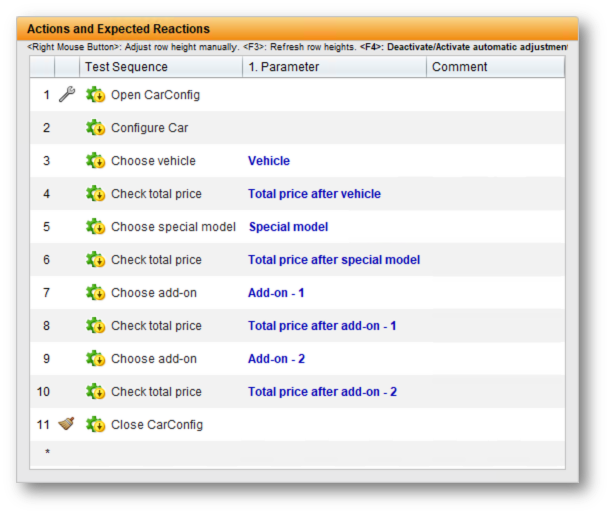
Img-1: Test Case Set in TestBench
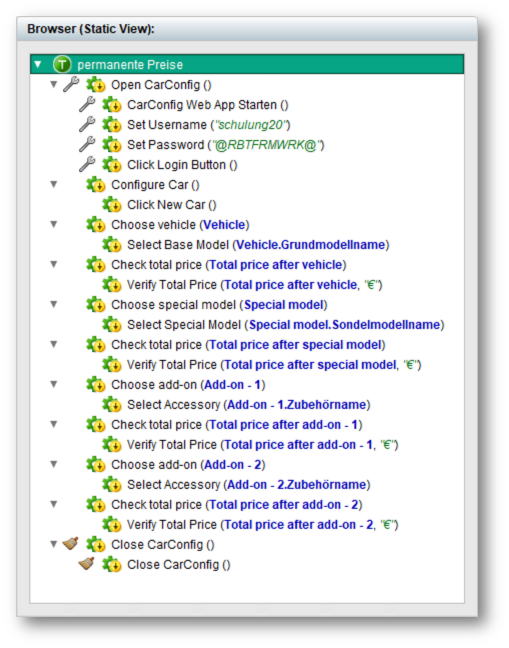
Img-2: Test Sequence Structure in Browser

Img-3: Test Case Data Table in TestBench
When this test case set is generated, the generated Robot Framework suite Generated/2__permanente_Preise.robot (Img-4) contains 2 test cases, each with a GROUP block that represents the high-level keywords. The low-level keywords are called inside the GROUP blocks.
Test Setup and Teardown keywords are generated separately per test case. (Img-5)
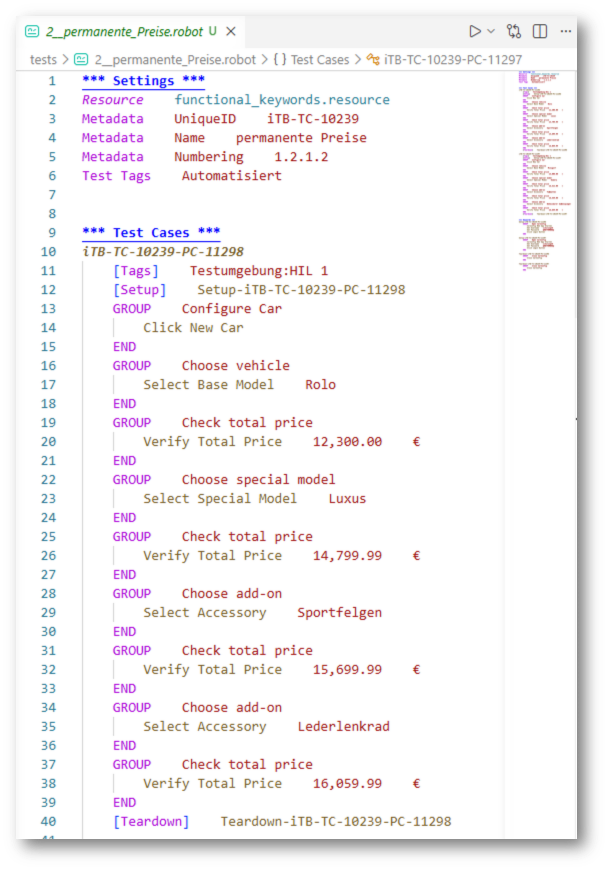
Img-4: Generated Robot Framework Suite
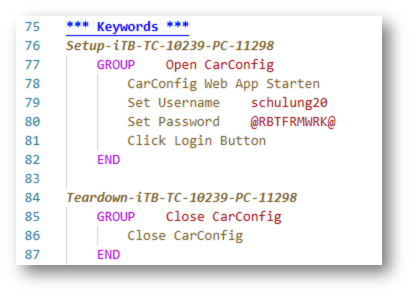
Img-5: Test Setup and Teardown Keywords
The report must have the report format version 1.0 — the formatVersion
recorded in its manifest.json is checked before anything is generated.
testbench2robotframework generate-tests -d ./Generated my_report.zip
How the command line is structured is explained in Command-Line Usage; every option and its values is described in the Configuration Reference.
Modeling Keywords in TestBench
This is the part that makes the generated suites actually run: the tool has to know which Robot Framework library or resource file each TestBench keyword belongs to. Every keyword in TestBench lives in a subdivision, and its subdivision path decides the import and the name the keyword is called with. Structure the subdivisions after one of two conventions.
Convention 1: marker suffixes (the shipped defaults)
Name a subdivision after the Robot Framework library or resource file and append a marker:
Interactions
├── Browser [Robot-Library]                  ← keywords of a Robot library
│   ├── New Browser
│   └── Click
└── functional_keywords [Robot-Resource]     ← keywords of a resource file
    └── Login User
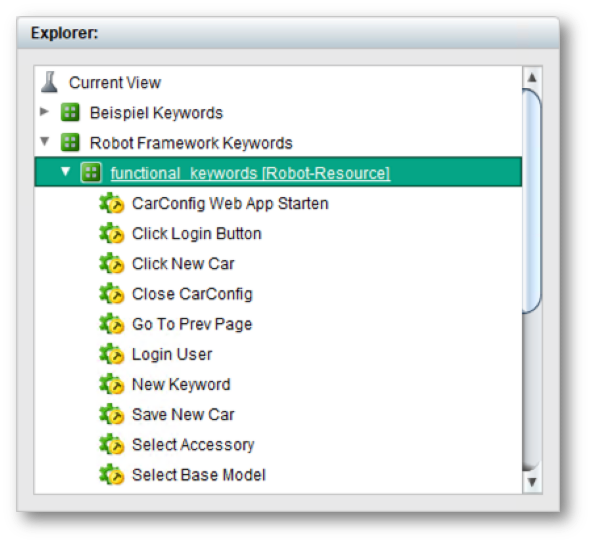
Img-6: Test Elements in TestBench
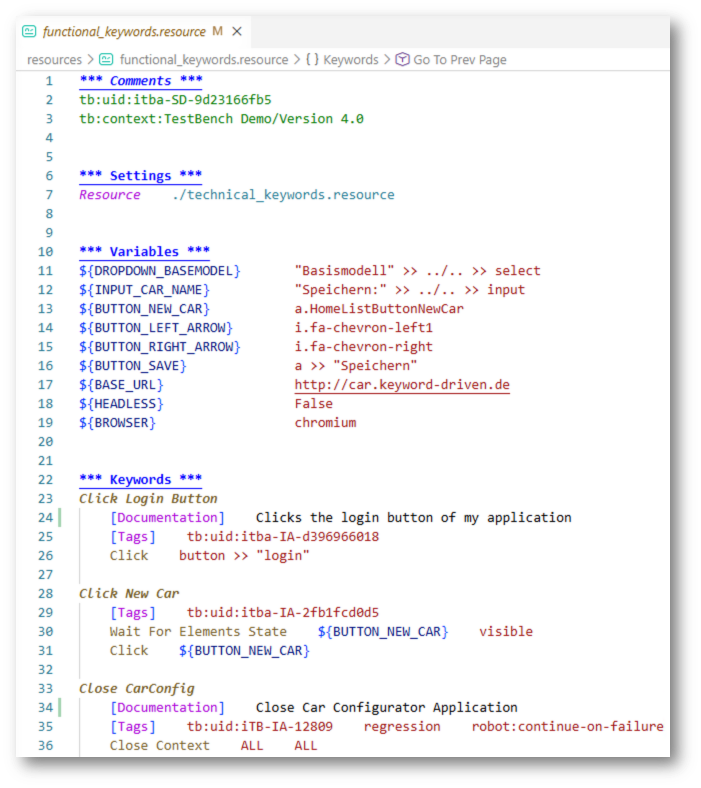
Img-7: User Keywords in Robot Framework
The default patterns match the part before [Robot-Library] /
[Robot-Resource] anywhere in the keyword's path, so nesting above or below the
marked subdivision is fine. The example generates:
*** Settings ***
Library     Browser
Resource    functional_keywords.resource
The marker texts are not fixed — they come from the
library-regex and
resource-regex
options; the pattern rules are in
Subdivision Patterns.
Convention 2: root subdivisions
Alternatively, collect libraries and resources under fixed root subdivisions. The direct children of a root are the import names:
RF                           ← library root (defaults: "RF", "RF-Library")
├── Browser                  → Library    Browser
└── RoboSAPiens              → Library    RoboSAPiens
RF-Resource                  ← resource root (default: "RF-Resource")
└── functional_keywords      → Resource   functional_keywords.resource
The roots are set via
library-root and
resource-root.
How a keyword is resolved
For each keyword the subdivision path is checked in this order — the first match wins:
- a
library-regexpattern → Library import, name from the pattern - a
resource-regexpattern → Resource import - first path segment in a library root → Library, second segment is the name
- first path segment in a resource root → Resource, second segment is the name
- otherwise the subdivision is unknown: a warning is logged and a
# UNKNOWN <path>comment is written into the suite instead of an import. The suite is still generated, but that keyword fails until you configure a mapping.
When a matched name needs a different import statement — library arguments, a
remote library, an unusual path — override it per name with
library-mapping / resource-mapping,
for example:
[tool.testbench2robotframework.library-mapping]
RoboSAPiens = "RoboSAPiens    language=de"

[tool.testbench2robotframework.resource-mapping]
functional_keywords = "{root}/shared/functional_keywords.resource"
Keyword names
The keyword names in TestBench must equal the Robot Framework keyword names
(matching is case- and space-insensitive on the Robot side). If two imports offer
a keyword of the same name, enable
fully-qualified so the generated
calls use the library-qualified name (e.g. Browser.Click).
Where resource files live
Resource imports point into
resource-directory, which is
empty by default — a resource is then imported by plain file name and resolved by
Robot Framework relative to each generated suite.
It is a clear recommendation to set the Python search path (PYTHONPATH) to
include the directory containing the resource files, so that Robot Framework finds
them at runtime.
Robot Framework resolves a relative resource path either relative to the
Python search path (PYTHONPATH) or relative to the .robot file that imports it.
If the Python path is not set, the resource file is therefore expected right next
to each generated suite, e.g. Generated/1__Theme/functional_keywords.resource.
In case the Python search path can not be used, you can work with absolute paths
in the generated suites. For one fixed location set an absolute resource-directory
such as "{root}/Resources" (as in the shipped example configuration); {root} is
replaced by the absolute path of the directory generate-tests runs in, so the
generated suites contain absolute paths.
A subdivision matching
resource-directory-regex
(default marker [Robot-Resources]) marks a resource root; subdivisions between it
and the resource become subdirectories:
Root [Robot-Resources]
└── Sub
    └── Common [Robot-Resource]   → <resource-directory>/Sub/Common.resource
What else you can control
Beyond keyword mapping, generate-tests offers a few functional switches. Each
links to its full description in the Configuration Reference.
Skip blocked test elements
Test elements whose TestBench execution status is Blocked are not generated
by default — a blocked test case is left out of its suite, a blocked test case set
produces no .robot file, and a blocked test theme drops its whole subtree, so a
CI pipeline does not execute tests the tester marked as not executable. The number
of skipped elements is logged:
INFO: Skipped 1 blocked test case sets and 3 blocked test cases. Use '--include-blocked' to generate them anyway.
Generate them anyway with
include-blocked.
Blocking is part of a test cycle's execution data. A specification export
(tov_structure.json) has no execution status, so nothing is filtered there.
Split a test case into phases
Some keywords restart the system under test mid-test. An interaction matching
testcase-splitting-regex
splits the TestBench test case into several Robot Framework tests at that point,
named by phase-pattern. One test
case itb-TC-1-PC-2 with a single split point becomes the Robot tests
itb-TC-1-PC-2 : Phase 1/2 and itb-TC-1-PC-2 : Phase 2/2. fetch-results
recombines the phases into one TestBench result using the same pattern.
Keep phase-pattern identical for generate-tests and fetch-results — the
results are matched by that pattern.
Represent compound keywords
Higher-level (compound) TestBench keywords can be rendered as a Robot Framework
GROUP block, as comments, or inlined without a marker — see
compound-keyword-logging.
Add suite metadata
Extra Metadata entries — including values pulled from the test case set model
via {$tcs...} placeholders — can be added to every suite with
metadata.
Use attachments as parameter values
A parameter whose representative is a file attached in TestBench arrives in the generated keyword call as a path into the report's attachments:
${message} Get File ${ITB_ATTACHMENTS_DIR}/representatives/DT-6917529030000126275/file.xml
TestBench exports such files to attachments/representatives/DT-<data type key>/
inside the report. Two ways to make them available at execution time:
-
Let
generate-testscopy them next to the suites withattachments-directory. Every suite that uses attachments then defines${ITB_ATTACHMENTS_DIR}relative to itself and the output directory runs as it is:testbench2robotframework generate-tests --attachments-directory attachments my_report.ziprobot ./Generated -
Or keep the report where it is and point the variable to its
attachmentsdirectory when running:robot --variable ITB_ATTACHMENTS_DIR:/path/to/my_report/attachments ./Generated
The variable's name is set by
attachments-variable.
Inside compound keywords the data type is taken from the outermost call the value
was passed down from. If no data type can be found, the file name is written as is
and a warning is logged.